Action When to Take It
Toggle permissions off If you do not remember granting access to the app
Review all app permissions If you see the dot frequently from unknown apps
Delete the app If the app is one you no longer use
How to Revoke Permissions
Step Action
1 Open Settings on your Android device
2 Navigate to Apps or Applications
3 Find the app in question
4 Tap Permissions
5 Toggle off Camera and/or Microphone access
Why This Privacy Feature Matters
Benefit How It Helps
Transparency You know exactly when your camera or microphone is active
Control You can revoke permissions from apps that do not need them
Security Helps you spot apps that may be accessing your hardware without your knowledge
Samsung has included this feature to help customers feel more in control over their privacy settings. Once you know what it means, you will know whether or not you need to review your phone’s privacy and permissions settings.
Common Apps That May Trigger the Green Dot
App Type Reason for Camera/Microphone Access
Camera apps Obviously in use when taking photos/videos
Video calling apps (Zoom, WhatsApp, Google Meet) Microphone and camera in use during calls
Voice recorders Microphone access
Navigation apps (Google Maps) Microphone for voice commands
Social media apps (Instagram, Snapchat) Camera access for stories/posts
Keyboard apps (Gboard) Microphone for voice typing
Quick Reference: Green Dot on Android
Question Answer
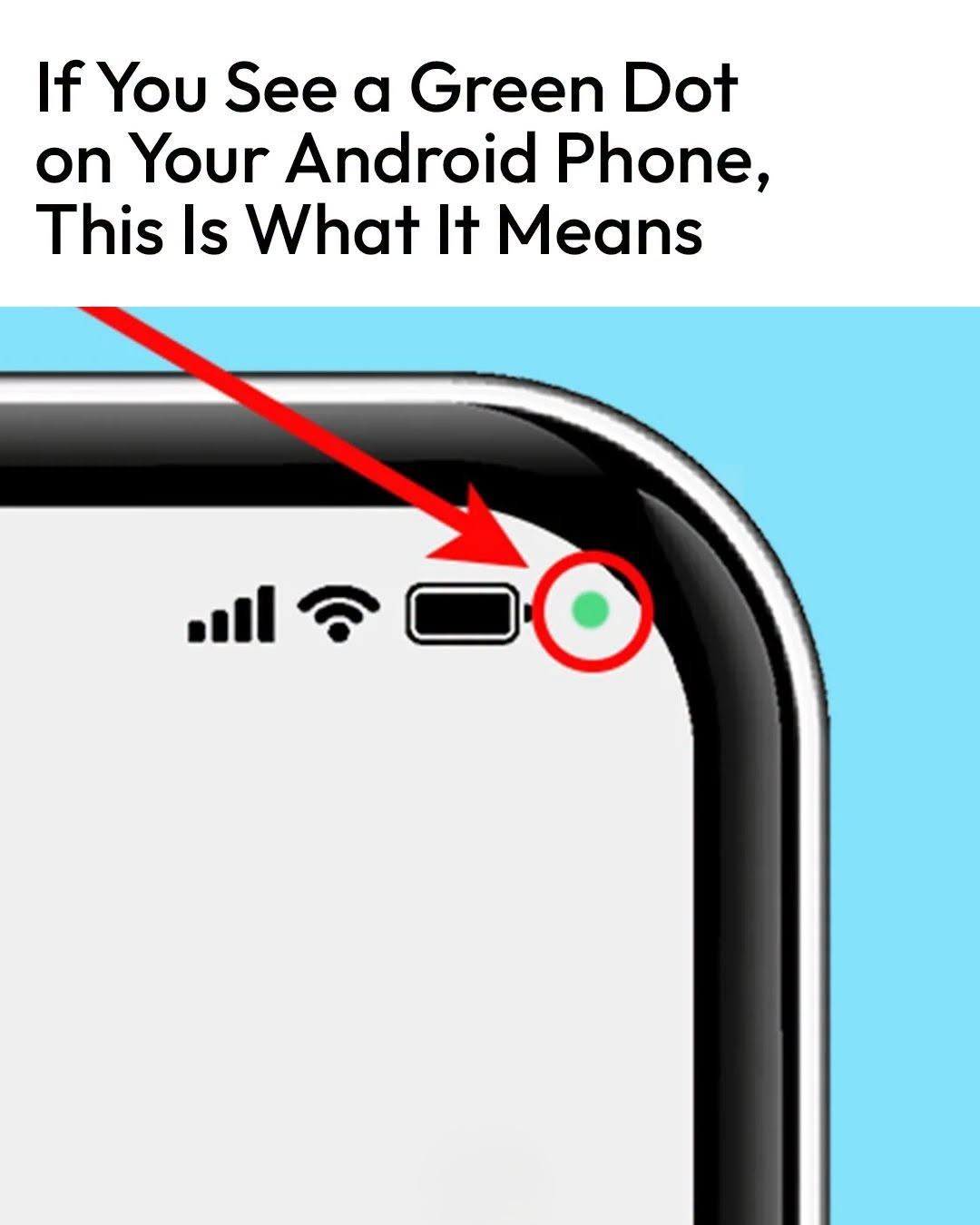
What does the green dot mean? An app is using your camera or microphone
How do I check which app? Swipe down, tap the dot
Is it normal? Yes, if you are actively using the camera/microphone
What if I don’t recognize the app? Review permissions immediately
Can I turn it off? The indicator itself cannot be turned off, but you can revoke permissions
Is this only on Samsung? Most Android phones have similar privacy indicators
Final Thoughts
The green dot on your Android phone is your privacy sentinel. It lets you know when your camera or microphone is being used, giving you the transparency and control you deserve.
Do Don’t
Check the dot regularly Ignore it if you see it unexpectedly
Review app permissions frequently Allow apps to keep permissions you no longer want
Delete unused apps Assume all apps with permissions are safe
Use the dot as a privacy check-in Hesitate to revoke permissions
Your phone knows a lot about you. The green dot is your way of knowing what your phone knows—and making sure you are comfortable with it.